
System Settings
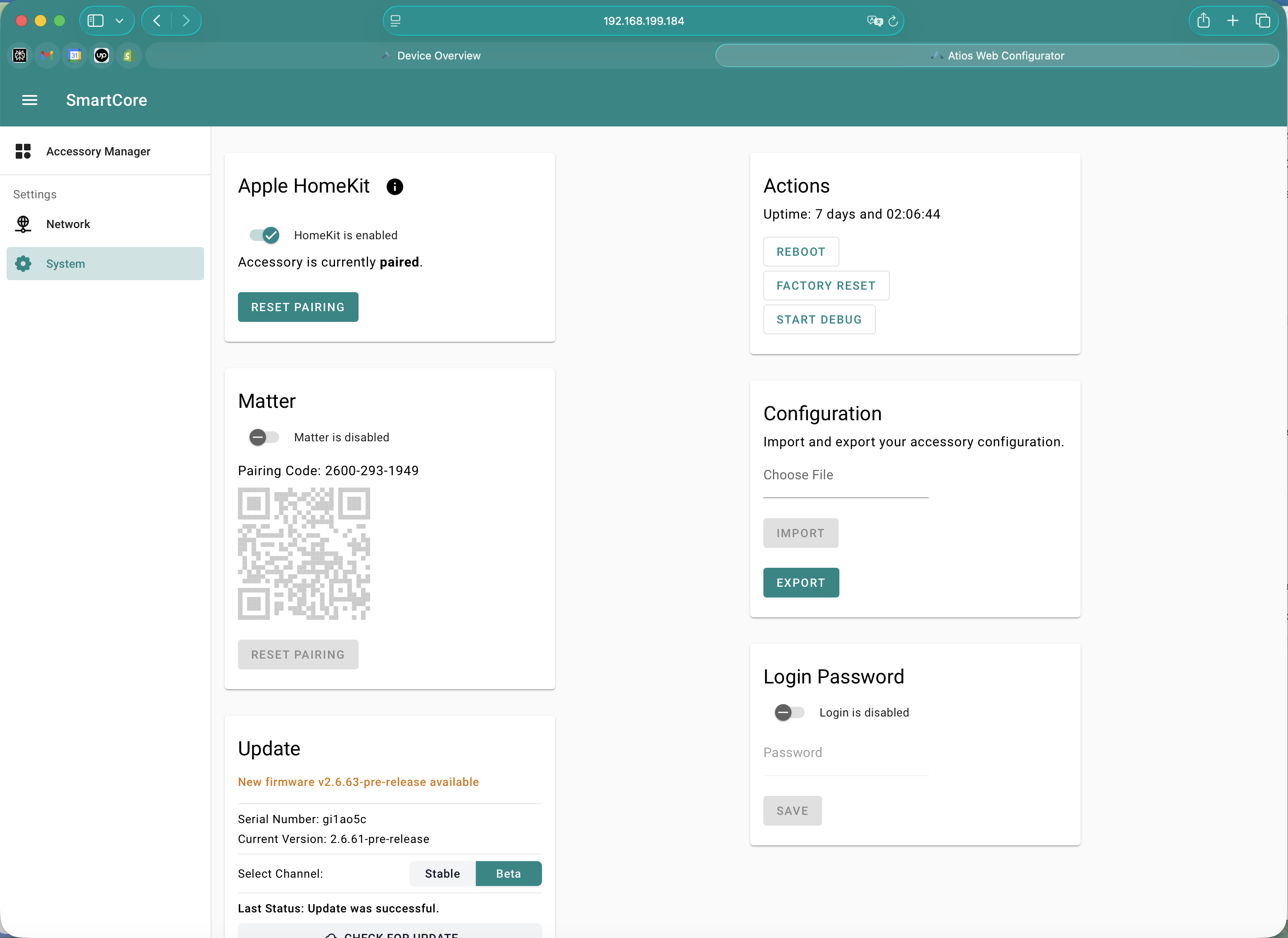
System Settings provides access to SmartCore's core functions, including protocol configuration, firmware updates, and configuration management.
Accessing System Settings
Open the Web Interface by accessing your SmartCore here and navigate to Settings > System.
DALI Power Supply
Toggle the internal DALI power supply on or off.
Specifications:
- Output: 250mA at 16V
- Use case: Powers DALI devices when no external power supply is available
- Alternative: Disable internal supply and use an external DALI power supply for more power
WARNING
Do not enable both internal and external DALI power supplies simultaneously. This can damage the DALI bus hardware.
HomeKit and Matter
SmartCore supports both HomeKit and Matter protocols for integrating with smart home ecosystems.
HomeKit Toggle
Enable HomeKit to pair SmartCore with Apple Home.
- When enabled, a HomeKit pairing code appears in System Settings
- Scan the code with Apple Home to pair
- Requires HomeKit to be disabled first if Matter is currently active
- Reboot required after changing
Matter Toggle
Enable Matter to pair SmartCore with Matter controllers (Google Home, Amazon Alexa, Samsung SmartThings, Home Assistant).
- When enabled, a Matter pairing QR code appears in System Settings
- Scan the code with your preferred Matter app to pair
- Requires Matter to be disabled first if HomeKit is currently active
- Reboot required after changing
WARNING
HomeKit and Matter cannot run simultaneously. You must choose one protocol. To switch protocols, disable the active one, reboot, then enable the new one.
Update
Check for and install firmware updates. The Update card shows:
| Field | Description |
|---|---|
| Serial Number | The unique serial of this SmartCore. Quote it when contacting support. |
| Current Version | The firmware version currently running on the device. |
| Select Channel | Toggle between Stable and Beta firmware streams. |
Update process:
- In System Settings, scroll to Update.
- Select the channel you want to follow: Stable (default, recommended) or Beta (early access to new features, may be less stable).
- Click CHECK FOR UPDATE. If a newer version is available on the selected channel, the SmartCore offers to download and install it.
- The SmartCore reboots automatically during the update.
- Do not unplug the device during the update process.
Firmware updates are free and are announced on the Atios website.
WARNING
Never unplug the SmartCore during a firmware update. This can corrupt the firmware and require professional repair.
TIP
Use the Beta channel only on test systems or if you are comfortable with potential instability.
Reboot
Reboot SmartCore to apply changes or troubleshoot issues.
- In System Settings, navigate to Actions
- Click Reboot
- SmartCore will restart and reconnect to your network
- This typically takes 30 seconds to 2 minutes
INFO
Rebooting does not erase your configuration.
Factory Reset
Factory Reset returns SmartCore to its original state, erasing all configuration.
WARNING
Factory Reset deletes all settings, pairings, and device configurations. This cannot be undone. Back up your configuration first if you need to preserve it.
Via Web Interface:
- In System Settings, navigate to Actions
- Click Factory Reset
- Confirm the action
- SmartCore will restart with default settings
Via Hardware Button:
- Locate the hardware reset button on SmartCore
- Press and hold the button for 10 seconds
- SmartCore will reboot and reset to factory settings
Debug Mode
Enable Debug Mode to generate detailed system logs for troubleshooting.
- In System Settings, toggle Debug Mode to On
- SmartCore logs detailed information about system operations
- Use these logs when contacting support for help with issues
Debug Mode may impact performance. Disable it when troubleshooting is complete.
Login Password
Set or change the password for accessing the Web Interface.
- In System Settings, navigate to Login Password
- Enter a new password
- Re-enter the password to confirm
- Click Save
- The new password will be required the next time you access the Web Interface
TIP
Store your password in a secure location. If you forget it, you will need to perform a factory reset to regain access.
Import Configuration
Restore a previously saved configuration from a file.
- In System Settings, navigate to Import/Export
- Click Choose File and select a configuration file (.json or other format as provided)
- Click Import
- SmartCore will load the configuration and reboot
- Your settings, devices, and pairings will be restored
Import Configuration overwrites your current settings. Make sure you are importing the correct file.
Export Configuration
Back up your current configuration to a file.
- In System Settings, navigate to Import/Export
- Click Export Configuration
- A file will download to your computer
- Store this file in a safe location
- You can restore from this file later using Import Configuration
TIP
Export your configuration regularly so you can quickly restore settings if needed.