
Network Settings
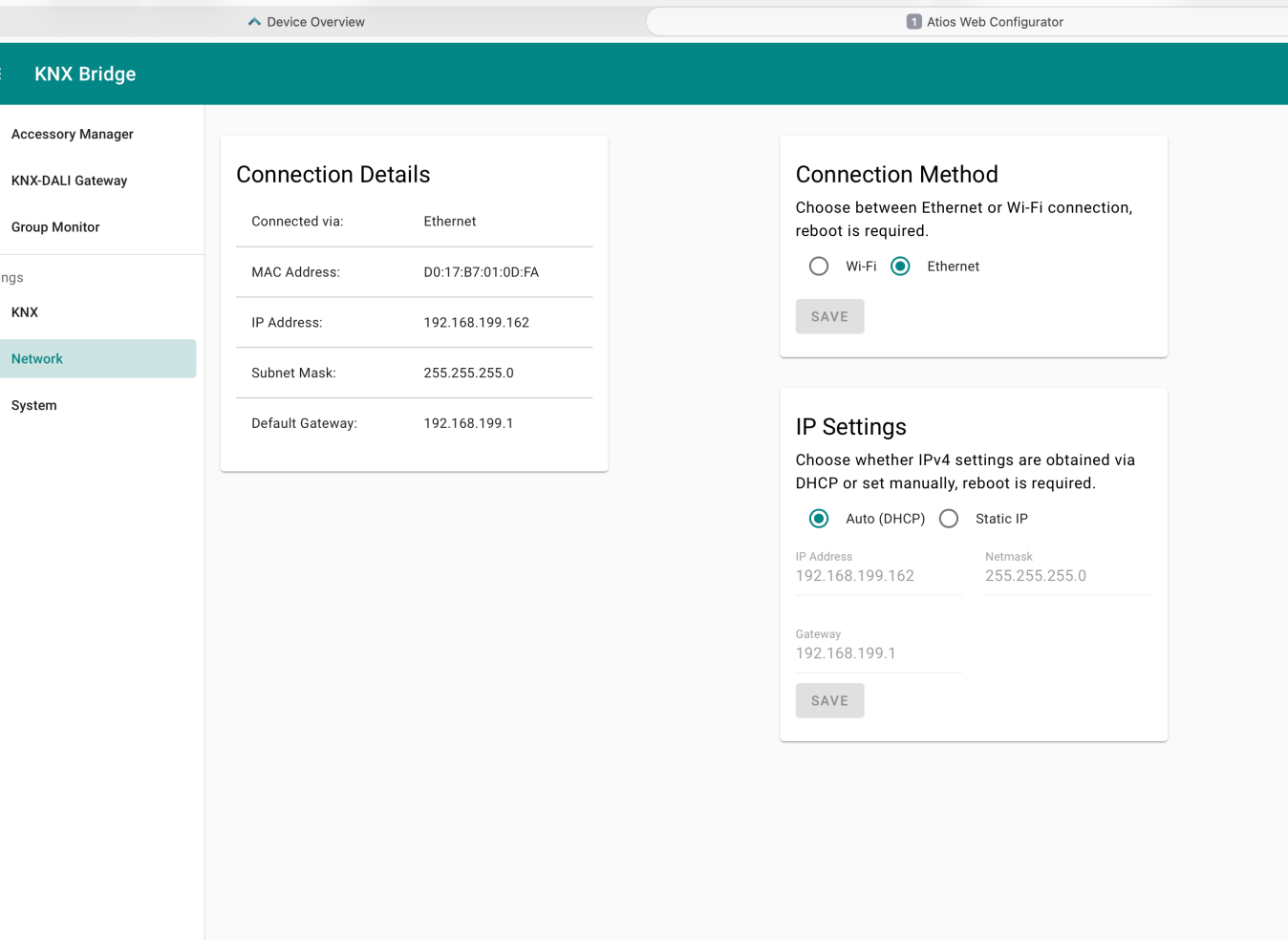
Connection Details
The Connection Details panel shows the current network status of the KNX Bridge, including the connection type, MAC address, IP address, subnet mask, and default gateway.
Connection Method
Choose between Ethernet and Wi-Fi. A reboot is required after changing the connection method.
To switch to Wi-Fi:
- Select Wi-Fi and click Save.
- Reboot the device from System Settings → Reboot.
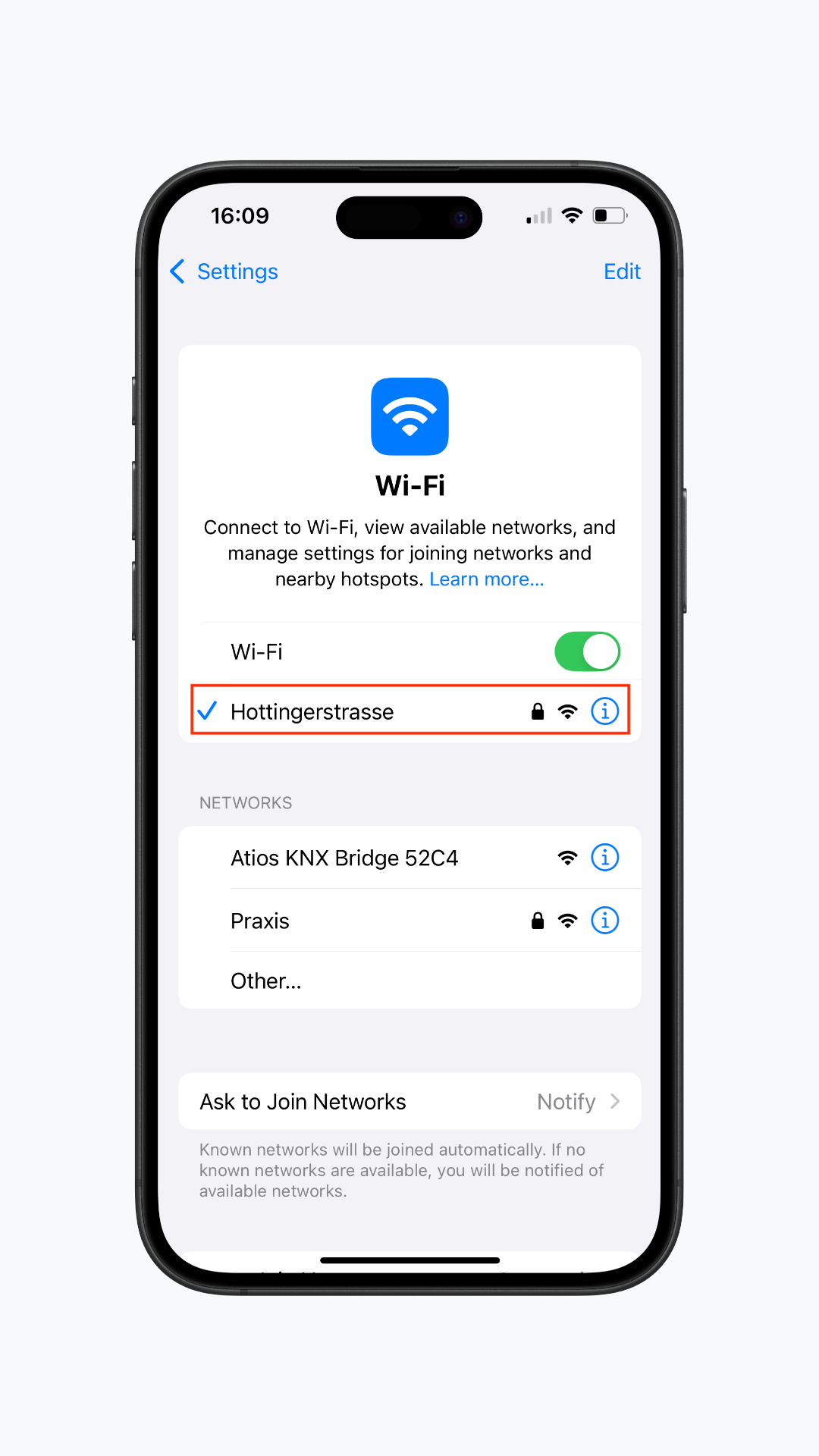
- After rebooting, the KNX Bridge creates its own Wi-Fi network (access point). Open your phone or laptop, go to your Wi-Fi settings, and connect to the network named Atios KNX Bridge.
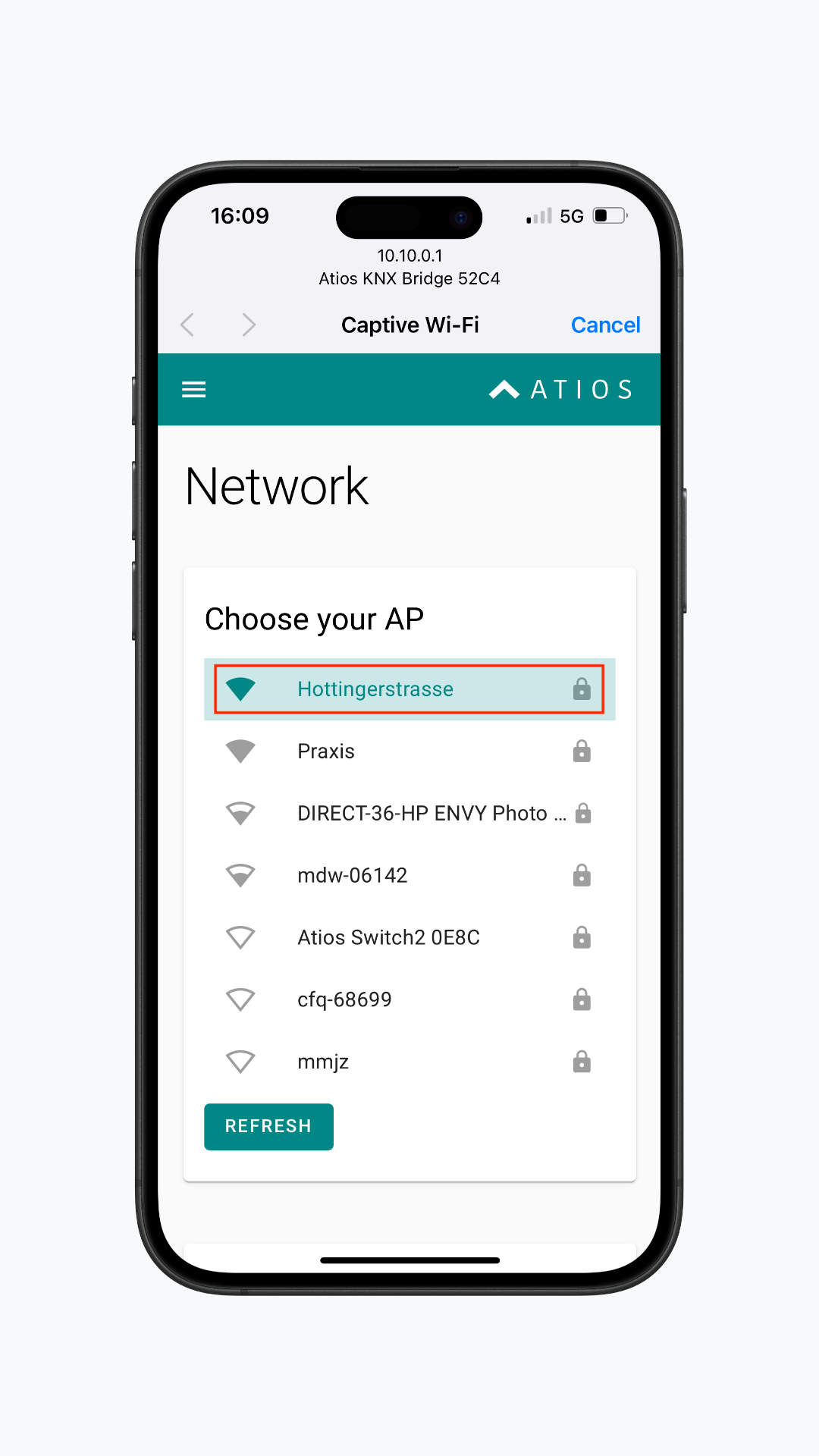
- You will be redirected to the device's network configuration page. Select your home Wi-Fi network, enter the password, and click Connect.
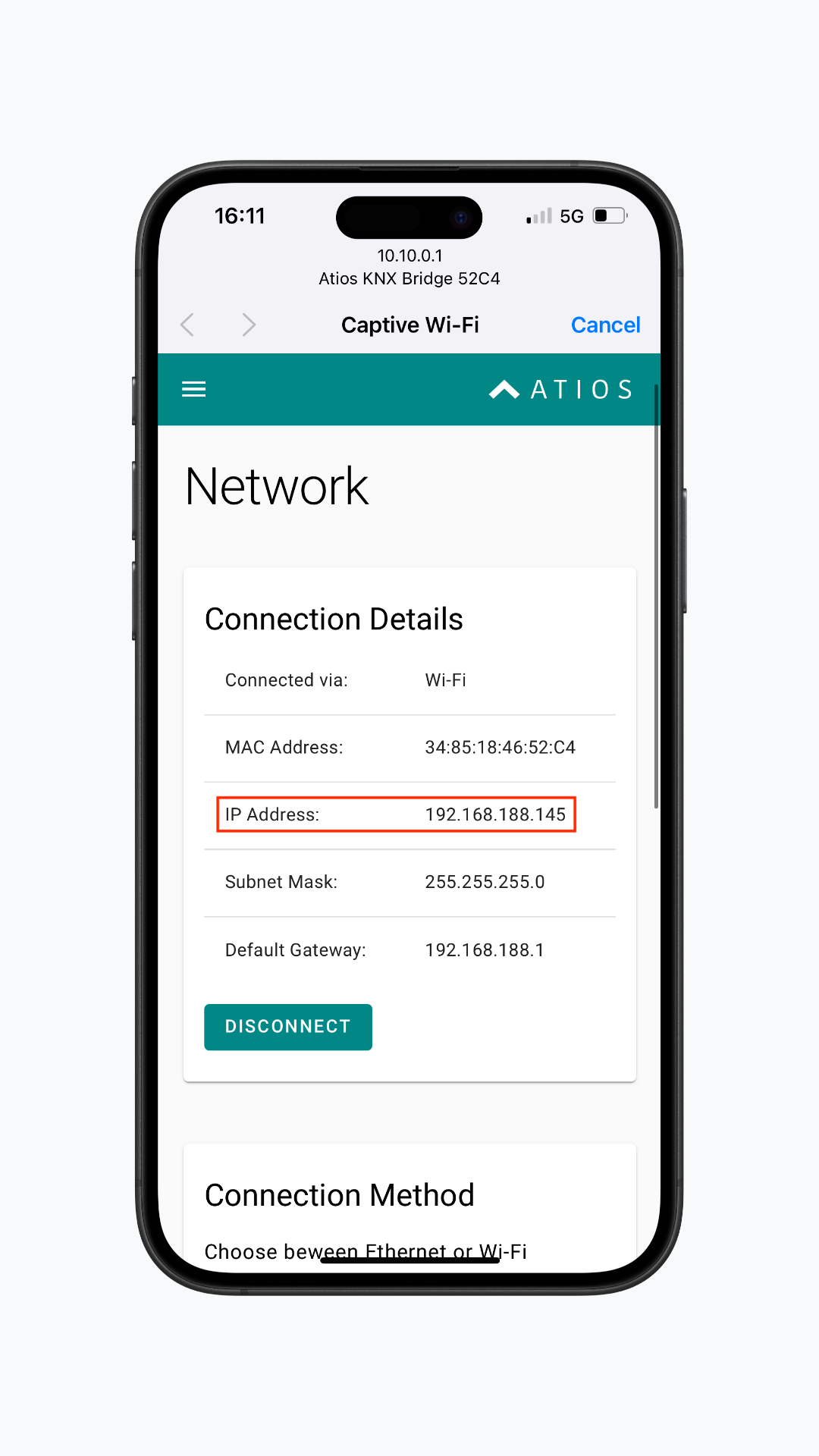
- The device will now connect to your Wi-Fi network. Find the new IP address in Connection Details and use it to access the Web Interface.
IP Settings
Choose whether IPv4 settings are obtained automatically via Auto (DHCP) or configured manually with a Static IP.
For a static IP, enter the IP address, netmask, and gateway, then click Save.
WARNING
A reboot is required after changing IP settings.