
Pairing Guide
The Atios KNX Bridge supports two protocols, HomeKit and Matter.
- Apple HomeKit: Established protocol, compatible with Apple Home and Home Assistant.
- Matter: Modern open standard compatible with Apple Home, Google Home, Amazon Alexa, Samsung SmartThings, and Home Assistant.
You can pair the KNX Bridge to either HomeKit or Matter. Matter is the recommended standard. HomeKit continues to be supported for device categories not yet covered by Matter (e.g. garage doors, alarm systems).
Pairing to Matter
Matter pairing requires a Matter controller (e.g. a smart home hub from Apple, Google, Amazon, or Samsung).
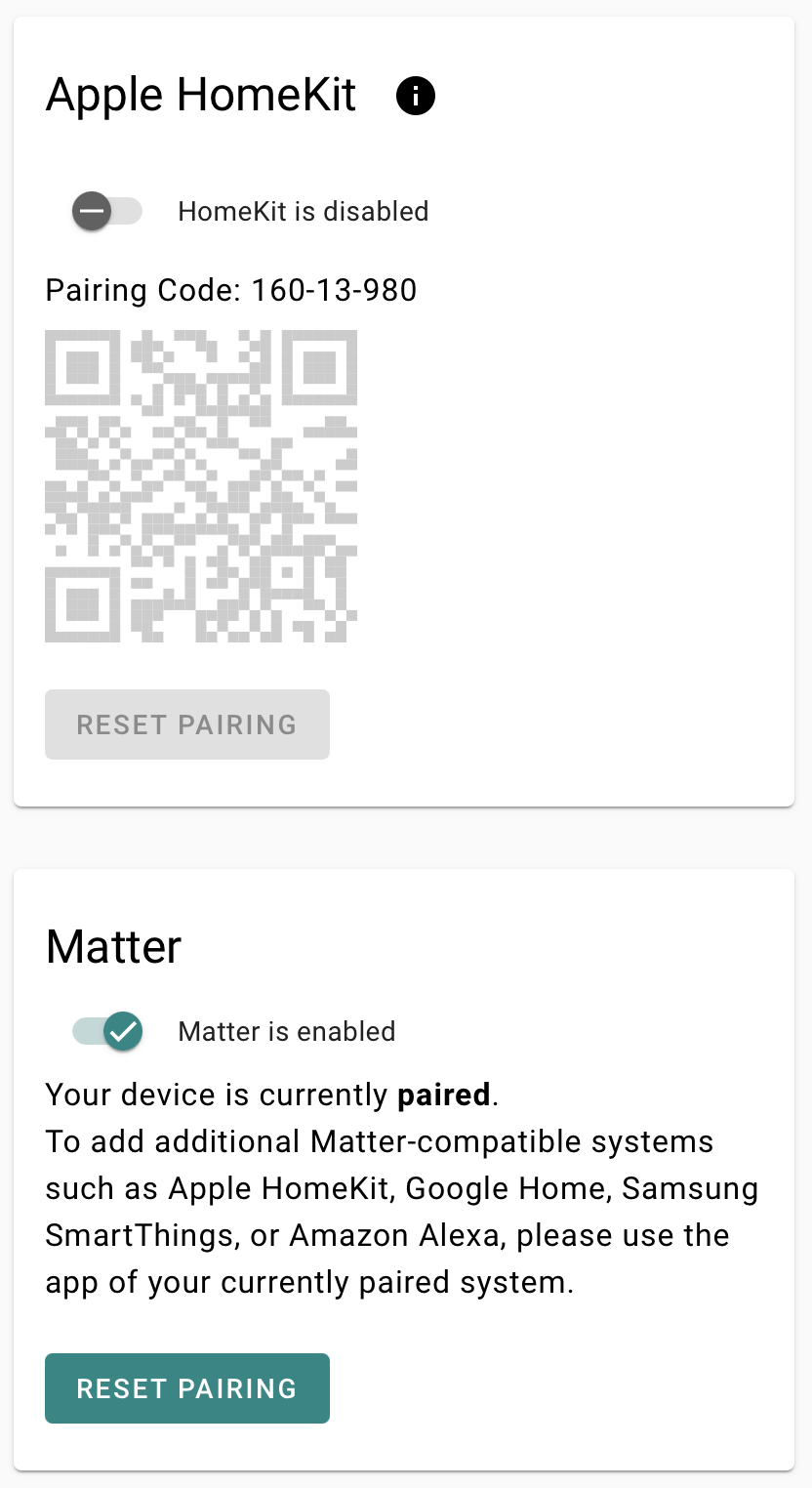
- Navigate to System Settings and enable Matter.
- Allow the device to reboot. Your existing configuration will remain unchanged.
- Pair the KNX Bridge in your Matter-compatible app (see below).
Apple Home
- Open the Apple Home app.
- Make sure your phone is on the same network as the KNX Bridge.
- Tap Add (+) in the top right corner → Add Accessory.
- Scan the Matter QR Code in System Settings with your phone camera.
- Choose a room and follow the on-screen instructions.
Google Home
- Open the Google Home app.
- Tap Add (+) → Set up device → New device.
- Select your home and tap Next.
- Tap Set up a different device → Matter device.
- Scan the Matter QR code and follow the in-app instructions.
Amazon Alexa
- Open the Alexa app.
- Tap Devices → Add (+) → Add Device → Other.
- Select Matter and confirm you have a Matter device.
- Scan the Matter QR code and follow the on-screen instructions.
Samsung SmartThings
- Open the SmartThings app.
- Tap Add (+) → Add Device → Scan.
- Scan the Matter QR code.
- Select the Hub and Room, wait for the device to connect, and choose the network.
- Rename the device and tap Save.
Home Assistant (iOS)
- Open the Home Assistant app.
- Go to Settings → Devices & services.
- On the Devices tab, tap Add device → Add Matter device.
- Tap No, it's new and scan the Matter QR code.
- Tap Add to Home Assistant and follow the prompts.
Home Assistant (Android)
- If a pop-up appears, scan the Matter QR code directly.
- When prompted to choose an app, select Home Assistant.
- Tap Done, then Add device.
- If no pop-up appears: open Home Assistant → Settings → Devices & services → Add device → Add Matter device, tap No, it's new, and scan the QR code.
Adding Additional Apps via a Paired App
You can add additional Matter ecosystems through an already-paired app without re-pairing the device.
Example: Adding Google Home after Apple Home is already set up
- Open Apple Home and tap the … in the top right corner.
- Tap Home Settings → Home Hubs & Bridges.
- Select the Atios KNX Bridge → Turn on Pairing Mode and Copy Code.
- Open Google Home and tap Add (+) → Matter-enabled device → No QR Code.
- Paste the code from the clipboard and tap Add to Google Home → Add Anyway.
- Choose a name and follow the on-screen instructions.
Pairing to HomeKit
- Open the Atios Web Interface and navigate to System Settings.
- Enable Apple HomeKit. If already enabled, continue to step 4.
- Since HomeKit and Matter cannot run simultaneously, enabling HomeKit will automatically disable Matter. Allow the device to reboot.
- Open the Apple Home app on your iPhone or iPad.
- Tap the Add (+) icon and select Add Accessory.
- Scan the HomeKit QR code shown in the Atios Web Interface.
- Follow the on-screen instructions to complete setup.